A Linux/gnu front-end to the parted tool. It is the recommended method for manipulating disks when using a Linux live session.
Information
Gparted is one of the preinstalled packages for our r/Techsupport Rescue Media. If you are using this live image, you can skip the installation section.
How to install gparted
Refer below for installation instructions if you are not using our live image or want to install it on your own system.
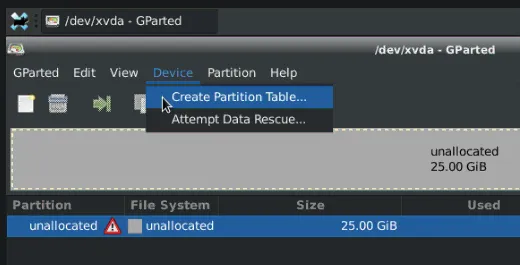
A disk needs a partition table made as the first step in formatting. This is generally an MBR/msdos or GPT table. GPT is preferred for all modern applications.
Important
MBR partition table has a limitation of a maximum of 2 TB per partition, so keep that in mind when using it.
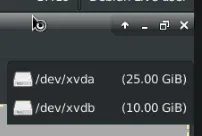
Select a disk in Gparted from the drop-down in the top right
To create your table, hover over ‘device’ with your disk selected.
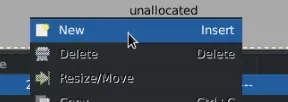
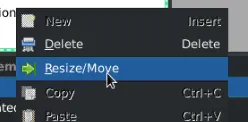
To create a partition on a disk right click any unallocated space and choose ‘New’.
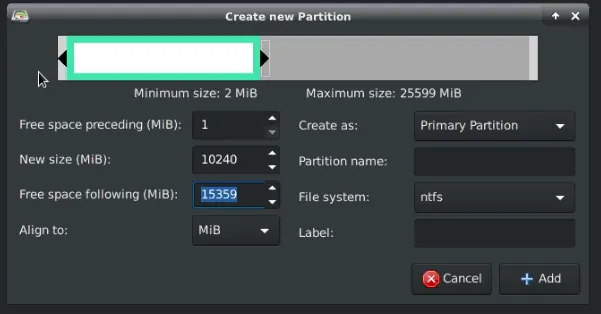
Choose your size and location on the disk by dragging the sliders, the entire box or entering values manually. It is recommended to make partitions starting at the head (start) of the disk and work your way right.
Primary partitions are the typical user partition. Logical or extended are for more advanced setups.
Typical file system types and uses are:
Type
OS Compatibility
Use
Limitations
NTFS
Windows, with read natively on Linux/BSD or MacOS
Windows OS and data partitions
ext2/3/4
Linux/BSD, with read on other OS via third party tools
Linux/BSD OS and data partitions
Fat32
Read/Write natively on most OS
Removable media
Fat32 file systems cannot hold files larger than 4GB
exFAT
Read/Write natively on most OS
Removable media
HFS/+
MacOS native with read on other OS via third party tools
Manipulating partitions is dangerous and can result in a loss of data. It is recommended you have your data/disks images backed up prior to executing the following procedures.
If enlarging a partition ensure you have enough empty space to the immediate right of the partition. If you do not, move the neighbor partition far enough right that you have space for your enlargement operation.
Shrinking is not recommended, make a new partition and move your data.
You can only shrink a partition as far as data is dispersed through a partition. A partition may need to be defragmented before significant size changes are possible.
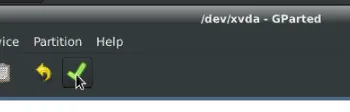
When you are done making changes to disk choose the ‘Check’ at the top to save those changes, confirm and the changes will start processing. If you shrunk, or moved partitions this can take a very long time.