
RivaTuner System Monitoring
To monitor system performance in real time using RivaTuner, follow this guide. It'll walk you through installation, setup, and monitoring.
Installing MSI Afterburner
Section titled “Installing MSI Afterburner”Download MSI Afterburner Make sure to download the version labeled as ‘Final’ to avoid instability.
Once downloaded, extract the zip file and run the installer inside.
ImportantMSI frequently bundles Norton 360 in the Afterburner installer; make sure to uncheck the box for it when first launching the installer!
Setting up the overlay
Section titled “Setting up the overlay”Once Afterburner is installed and open, click the settings icon in the top left. From there, navigate to the “On-Screen Display” tab and set your global hotkeys.
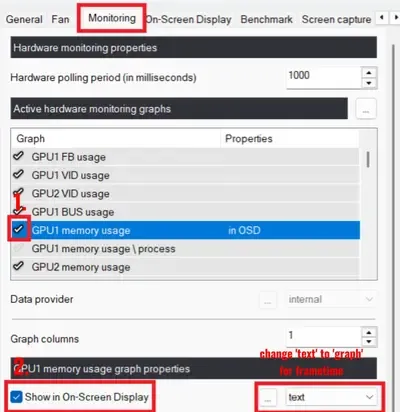
Afterwards, head to the “Monitoring” tab and toggle the check and “Show in On-Screen Display” property for the following attributes:
GPU Temperature
GPU Usage
GPU Memory Usage
GPU Core Clock
GPU Memory Clock
GPU Power
CPU Temperature
CPU Usage
CPU Clock
CPU Power
RAM Usage
Framerate
Frametime (Note: make sure frametime is set to be a graph rather than text.)
Framerate 1% Low
Once done, click apply then ok and minimize Afterburner.
Monitoring in-game
Section titled “Monitoring in-game”Before hopping into a game, we need to make sure the OSD is on. To do this open your system tray, click the RivaTuner icon, and make sure ‘Show On-Screen Display’ is turned ON.
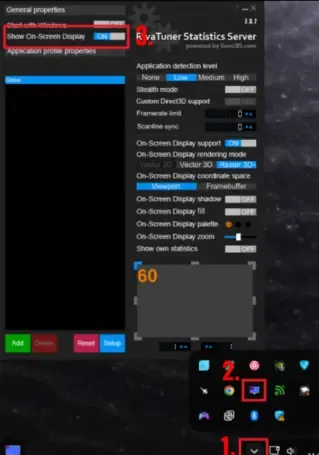
Now you can launch your game. If you don’t see the overlay upon launch, press the hotkey you assigned for toggling the OSD.
If receiving assistance in the discord, play with the overlay enabled until your issue begins. Once your issue starts, take a screenshot or short recording of the entire game window and send it in the server.
TipFor a more in-depth static analysis, refer to our HWiNFO guide.